
Are you tired of your workout sessions not accurately reflecting your hard work on your Apple Watch? Imagine effortlessly tweaking your workout time to perfectly match your true effort, capturing every heartbeat and drop of sweat.
It’s not just about data; it’s about precision, control, and personalization. By learning how to edit your workout time on your Apple Watch, you’re not just optimizing your exercise metrics; you’re stepping into a world where your fitness journey is tailored to your exact needs.
Dive into our guide and unlock the secrets to making your Apple Watch work perfectly for you. Don’t miss the chance to enhance your fitness tracking experience and get the most out of every workout. Keep reading to find out how to master this feature and elevate your fitness game.

Credit: www.reddit.com
Change Workout Duration
Changing the workout duration on your Apple Watch lets you tailor your exercise sessions to fit your schedule and fitness goals. Whether you need a quick 10-minute walk or a full hour of intense training, adjusting the time helps you stay on track. Let’s look at how you can easily change workout duration before and during your session.
Adjusting Time Before Starting
You can set your workout duration right from the start, which helps you plan your session better. On the Apple Watch, open the Workout app, select your workout type, then tap the three dots next to it to pick a specific time goal.
This feature is great when you know exactly how long you want to exercise. For example, if you only have 20 minutes before a meeting, you can set that time and get notified when your workout ends.
Editing Time During Workout
Sometimes workouts don’t go as planned, and you might want to change the duration mid-session. While the Apple Watch doesn’t allow you to directly change the target time during a workout, you can pause and resume the workout to adjust your pace or intensity.
If you need to extend your workout, simply keep going beyond the original duration. You’ll still get accurate tracking, even if the workout lasts longer than initially set.
Have you ever wished for a quick way to tweak your workout time on the fly? Sharing your experience might help others find creative solutions too.
Credit: www.iphonelife.com
Pause And Resume Workouts
Pausing and resuming workouts on the Apple Watch helps track your exercise time more accurately. This feature is useful during breaks or interruptions. It ensures your workout data reflects your actual activity, not the pause moments.
Using Pause Feature Effectively
Tap the screen or press the side button to pause your workout. Use this during rest periods or when you stop moving. Pausing stops the timer without ending your session. This keeps your workout data clean and precise.
Use pause if you need to catch your breath or tie your shoes. Avoid pausing for very short breaks to keep the flow. Check the screen to confirm the workout is paused.
When To Resume For Accuracy
Resume your workout as soon as you start moving again. This restarts the timer and continues tracking your activity. Delaying resume might cause inaccurate total workout time.
Resume immediately after breaks or interruptions to keep data correct. This helps the Apple Watch calculate calories burned and distance accurately. Always confirm the workout has resumed before continuing your exercise.
Use Custom Workouts
Custom workouts on the Apple Watch let you tailor exercise sessions to your needs. You can change time, distance, or calorie goals. This helps keep workouts challenging and fun. Custom workouts fit all fitness levels and types of exercise. They give control over how you train and track progress.
Setting Time Goals
Choose a specific duration for your workout. Set the timer to match your fitness plan. For example, run for 30 minutes or do yoga for 45 minutes. The Apple Watch will alert you when time ends. This keeps you focused and motivated during exercise.
Modifying Workout Parameters
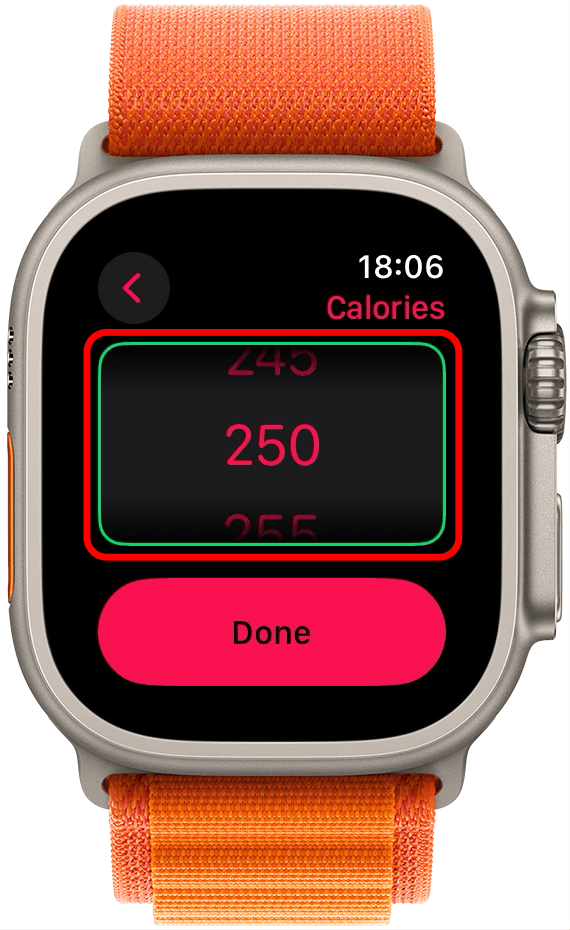
Adjust other workout details like calories or distance. Change these settings before starting your session. For instance, set a calorie goal to burn 300 calories. Or set a distance target for walking 2 miles. These options help match workouts to your fitness targets. The watch tracks progress and notifies you as you reach goals.
Edit Workout Data Post-session
After completing a workout, you might notice that the recorded time or other details don’t match your actual activity. Editing workout data post-session helps keep your fitness records accurate and meaningful. This process ensures your progress tracking stays reliable, especially if you forgot to pause your workout or the Apple Watch didn’t capture your full effort.
Using Health App For Corrections
Your iPhone’s Health app is a powerful tool for fixing workout data. It lets you adjust the start and end times of your sessions easily. Simply open the Health app, tap on the “Activity” section, then select the workout you want to edit.
From there, you can change the duration or calories burned to better reflect your actual exercise. Have you ever finished a run but accidentally hit stop too early? This feature helps you fix that without losing your progress.
Managing Inaccurate Time Records
Sometimes, your Apple Watch might record longer or shorter workout times due to pauses or sensor errors. If you notice your workout time is off, don’t ignore it. Adjusting this data keeps your fitness stats accurate and helps you set realistic goals.
To manage inaccurate times, review your workout summary right after your session. If the time looks incorrect, open the Health app and edit the session details. This way, your weekly and monthly activity reports will reflect your true performance.
Optimize Workout Settings
Optimizing your workout settings on the Apple Watch enhances accuracy and tracking. Proper settings help record your exercise time and effort more precisely. This makes your fitness data more reliable and useful.
Calibrating Apple Watch
Calibration improves the watch’s ability to measure distance and pace. To calibrate, walk or run outdoors with your iPhone and Apple Watch. Choose a flat, open area and maintain a steady pace for about 20 minutes. This helps the watch learn your stride and movement patterns.
After calibration, the watch tracks workouts more accurately, especially when GPS signals are weak. This process is important for all outdoor activities like running, walking, or cycling.
Enabling Wrist Detection
Wrist detection ensures the watch knows when you wear it. This feature improves heart rate monitoring and workout timing. When enabled, the watch starts and stops tracking automatically during exercises.
To enable wrist detection, go to the Watch app on your iPhone. Open “Passcode” settings, then turn on “Wrist Detection.” This setting helps avoid false data from accidental movements or when the watch is off your wrist.

Credit: www.iphonelife.com
Tips For Better Time Tracking
Tracking workout time accurately improves your exercise results. The Apple Watch offers tools to help with precise timing. Use these tips to get the best data from your workouts.
Starting Workouts Promptly
Begin your workout on the Apple Watch as soon as you start moving. Delays in starting cause inaccurate time records. Open the Workout app and tap the activity type quickly. This ensures the watch tracks from the first moment. For outdoor activities, wait for GPS signal before starting. This improves distance and pace accuracy. Staying ready with the watch on your wrist helps start faster.
Avoiding Common Timing Errors
Pause workouts only when truly resting. Accidental pauses can distort your total exercise time. Use the “End” button carefully to stop workouts. Avoid multitasking on the watch during exercises to prevent false inputs. Check your watch’s battery level before workouts. Low battery can cause the watch to lag or stop tracking. Finally, keep your watch snug on the wrist for better sensor contact.
Frequently Asked Questions
How To Edit Workout Time On Apple Watch?
To edit workout time, open the Workout app on your Apple Watch. Swipe left on the workout and tap “End. ” Then, adjust the duration before saving the changes. This helps keep your workout data accurate and up to date.
Can I Change Workout Duration After Completing It?
Yes, you can adjust workout duration after completion. Use the Health app on your iPhone, select the workout, and edit the start or end time. Changes will sync to your Apple Watch, ensuring precise activity tracking.
Why Should I Edit My Apple Watch Workout Time?
Editing workout time improves accuracy in tracking calories, distance, and overall fitness progress. It ensures your activity logs reflect real efforts, helping you set better goals and monitor improvements effectively.
Does Editing Workout Time Affect Apple Health Data?
Yes, editing workout time updates the data in Apple Health. The changes synchronize across your devices, maintaining consistency in your fitness records and analytics for better health insights.
Conclusion
Editing workout time on your Apple Watch helps keep your fitness data accurate. It lets you fix mistakes and track your progress better. You don’t need to worry if you start or stop a workout at the wrong time. Just follow simple steps to change the time and keep your records right.
This small change can make a big difference in your workout tracking. Stay consistent and watch your fitness journey improve day by day. Simple fixes like this help you stay on track with your health goals.







