
Are you frustrated because your fitness app isn’t counting your steps accurately? You’re not alone.
Many people rely on these apps to track their daily activity, but when the numbers don’t add up, it can feel confusing and discouraging. What if the problem isn’t your effort, but something else entirely? Keep reading to discover the common reasons your fitness app might be missing steps—and how you can fix it to get the most out of your workouts.
Common Issues With Step Tracking
Step tracking can fail for many simple reasons. Knowing these common issues helps fix problems fast. Many users face trouble because of device or app settings. Some problems come from hardware, others from permissions.
Device Compatibility Problems
Not all devices support every fitness app. Some older phones or watches lack the right sensors. Apps may not work well on certain operating systems. Check if your device matches the app’s requirements. Updates to apps or devices can also cause mismatches.
App Permissions Settings
Apps need permission to access motion sensors and location. Without these, step counts may not update. Some phones block permissions by default. Users must allow step tracking in app settings. Forgetting to enable these stops the app from working.
Sensor Malfunctions
Step counting depends on sensors like accelerometers. These sensors can fail or give wrong data. Dirt, damage, or software bugs affect sensor accuracy. Restarting the device can sometimes fix sensor issues. Persistent problems may need professional repair.
Troubleshooting Step Tracking
Step tracking is a key feature in fitness apps. It helps you see how active you are daily. Sometimes, the app stops counting steps correctly. This issue can be frustrating. Troubleshooting can fix most problems quickly. Follow simple checks to get your step count working again.
Restarting Your Device
Restarting your phone or tablet clears temporary glitches. It refreshes the system and app processes. This simple action can restore step tracking. Turn off your device, wait 10 seconds, then turn it back on. Open your fitness app and check the step count.
Updating The App
App updates fix bugs and improve features. An outdated app may not track steps properly. Visit your app store and check for updates. Download the latest version of your fitness app. After updating, reopen the app and test the step tracker.
Checking App Permissions
Step tracking needs permission to access sensors and data. Without permissions, the app cannot count steps. Go to your device settings and find app permissions. Allow access to motion sensors, location, and background activity. Confirm these settings, then reopen the app to see if steps count correctly.
Optimizing Device Settings
Optimizing your device settings plays a crucial role in ensuring your fitness app accurately tracks your steps. Sometimes, the issue isn’t with the app itself but with how your phone or wearable is set up. Fine-tuning these settings can make a noticeable difference in step tracking performance.
Calibrating Motion Sensors
Your device relies on motion sensors like the accelerometer and gyroscope to count steps. If these sensors aren’t calibrated properly, the app might undercount or overcount your movements.
Check if your device has a built-in calibration option in the settings menu. If not, try simple activities like walking a known distance while carrying your device to help it learn your motion patterns better.
Have you noticed if the step count changes after recalibrating? This small adjustment can often solve tracking errors.
Enabling Location Services
Location services don’t just help with maps—they also assist fitness apps in accurately tracking movement. Many apps use GPS data combined with motion sensors to verify your steps.
Make sure your location services are turned on and set to high accuracy or “while using the app.” This ensures the app can access the necessary data to track your steps precisely.
Without location access, your app might miss out on key information, leading to inaccurate step counts. Have you checked if your app has the right permissions?
Adjusting Battery Saving Modes
Battery-saving features can limit background activity and sensor use, which often disrupts step tracking. When these modes are active, your device may pause the fitness app or reduce sensor sensitivity.
Try disabling battery saver or adding your fitness app to the list of apps allowed to run in the background. This keeps your step tracker running smoothly throughout the day.
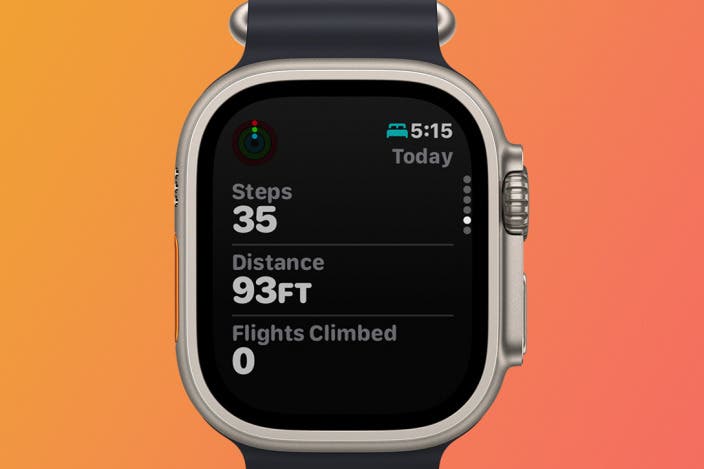
Is your device’s battery mode interfering with your step count? Adjusting these settings might be the fix you need to keep your progress accurate.
Credit: www.iphonelife.com
App-specific Solutions
App-specific solutions often resolve step tracking issues in fitness apps. Each app has unique features and settings. Understanding these can fix common problems quickly. Many apps need permissions and settings adjustments to work properly. Sometimes, small tweaks inside the app restore step tracking.
Checking app settings and updates is essential. User communities and support channels provide helpful tips. Troubleshooting within the app environment often saves time and effort.
Popular Fitness Apps And Their Fixes
Popular apps like Fitbit, Google Fit, and Apple Health have unique fixes. Fitbit may require syncing with the device or restarting the app. Google Fit needs location services enabled and background activity allowed. Apple Health often requires permissions for motion and fitness tracking.
Some apps need recalibration or resetting the step count. Others might need reinstalling to fix corrupted files. Checking these app-specific fixes can restore accurate step tracking.
Checking For App-specific Updates
App updates often fix bugs and improve tracking accuracy. Developers release patches to address known step count issues. Regularly updating the app keeps it running smoothly. Check the app store for the latest version. Enable automatic updates to avoid missing important fixes.
Ignoring updates can cause tracking errors and glitches. Keeping the app current helps maintain reliable step data.
User Support And Community Forums
Many apps have dedicated support teams and forums. Users share solutions for common tracking problems. Support pages offer step-by-step troubleshooting guides. Community forums reveal tips not found in official help sections.
Engaging with these resources provides quick, practical fixes. Other users’ experiences can guide resolving specific issues. Don’t hesitate to ask questions in these forums for personalized help.
When To Seek Professional Help
Sometimes, troubleshooting your fitness app on your own isn’t enough. If your step count still seems off despite all efforts, it might be time to look deeper. Knowing when to seek professional help can save you time and frustration.
Identifying Hardware Issues
Your device’s hardware might be the root of the problem. Sensors can wear out or get damaged, especially if you drop your phone or smartwatch.
Try testing other apps that use the same sensors. If they also fail to track steps accurately, hardware is likely the culprit.
Ask yourself: Is my device showing other signs of malfunction, like battery draining quickly or freezing? These can hint at bigger hardware issues needing expert attention.
Contacting Device Manufacturer
If hardware seems faulty, reaching out to the device manufacturer is the next smart move. They often provide troubleshooting guides tailored to your specific model.
Many manufacturers offer repair services or warranty replacements. Don’t hesitate to use these if your device is still under coverage.
Keep your purchase details handy when contacting support. Clear communication can speed up the resolution process.
Exploring Alternative Fitness Trackers
What if your current device just isn’t up to the task? Sometimes switching to a different fitness tracker can solve persistent step-count issues.
Look for devices known for accurate step tracking and good sensor quality. Reading user reviews can give you real-world insights.
Consider how you use your device daily. Would a wrist-worn tracker suit you better than a phone app, or vice versa? Your lifestyle impacts which tracker fits best.

Credit: www.reddit.com

Credit: www.reddit.com
Frequently Asked Questions
Why Is My Fitness App Not Counting Steps Correctly?
Your app may lack permission to access motion sensors. Ensure step tracking is enabled in settings and your device supports this feature.
How Can I Fix Inaccurate Step Tracking On My App?
Calibrate your device’s motion sensors, update the app, and check for software updates. Restart your phone if issues persist.
Does Phone Placement Affect Step Tracking Accuracy?
Yes, carrying your phone in a bag or loose pocket can reduce accuracy. Keep it on your body for better tracking.
Can Battery Saver Mode Stop Step Counting?
Battery saver may limit background activity, preventing step tracking. Disable it or whitelist your fitness app to maintain accurate data.
Conclusion
Step tracking issues can stem from many simple problems. Check your app permissions and phone settings first. Make sure your phone’s sensors work correctly and are not blocked. Keep your app updated to avoid bugs. Restart your device to refresh its functions.
Try recalibrating the app if steps seem inaccurate. Small fixes often solve the problem quickly. Don’t give up on tracking your progress. Stay active and keep moving every day. Accurate step counts help you reach fitness goals. Keep these tips in mind for better tracking results.







