
Are you frustrated because your fitness app isn’t tracking your workouts or steps like it should? You’re not alone.
When your app stops working properly, it can feel like all your hard work is going unnoticed. But before you give up, there are simple reasons why this might be happening—and easy fixes you can try right now. Keep reading to discover what’s behind this problem and how you can get your fitness app back on track, so your progress never goes uncounted.
Common Issues With Fitness Apps
Fitness apps may not track activities correctly due to common technical problems. Understanding these issues helps fix them quickly. Users often face trouble with app functions that seem simple but rely on many parts working together.
Problems can occur with connectivity, sensors, software, or battery life. Each affects how well the app collects and reports fitness data. Knowing these areas can guide users to better app performance and more accurate tracking.
Connectivity Problems
Fitness apps depend on internet or Bluetooth connections to sync data. Poor connection causes delays or loss of information. Weak Wi-Fi or unstable Bluetooth can stop the app from updating activity details. Check device settings and network strength to avoid disruptions.
Sensor Malfunctions
Many fitness apps use phone or wearable sensors to track movement and heart rate. Faulty or dirty sensors give wrong or no data. Device placement also matters; incorrect positioning affects accuracy. Clean sensors and wear devices as instructed for best results.
Software Glitches
Apps can have bugs that disrupt tracking functions. Outdated versions or corrupted files cause crashes or freezes. Restart the app or reinstall it to clear glitches. Keep the app updated to benefit from bug fixes and improvements.
Battery Drain
Fitness tracking consumes battery power, especially with GPS and sensors active. Low battery can reduce app performance or stop tracking. Close other apps and reduce screen brightness to save power. Charge the device fully before workouts for uninterrupted use.
Ensuring Proper Device Setup
Proper device setup plays a crucial role in accurate fitness tracking. Many tracking issues arise from simple setup errors. Ensuring your device is ready and configured correctly helps avoid common problems. This section covers key steps to verify your device setup for better app performance.
Checking Device Compatibility
Not all devices support every fitness app. Confirm your phone or wearable matches the app’s requirements. Check the app store or official website for compatibility lists. Using an incompatible device may cause tracking errors or failure to record data.
Updating To Latest Version
App updates fix bugs and improve features. Running an old version may cause tracking issues. Open your app store and check for updates regularly. Also, update your device’s operating system for smooth app performance.
Calibrating Sensors
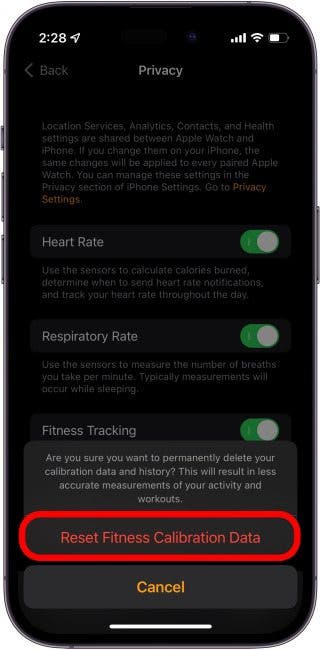
Sensors like GPS and accelerometers track your movement. Incorrect calibration leads to inaccurate data. Follow app instructions to calibrate sensors properly. Sometimes, simple actions like walking in a straight line help recalibrate your device.
Improving App Connectivity
Improving your fitness app’s connectivity is essential to ensure it accurately tracks your activities. Without a stable connection to your device’s sensors and the internet, the app may fail to record your progress correctly. Let’s look at practical steps you can take to boost this connectivity and get reliable tracking results.
Enabling Bluetooth And Gps
Many fitness apps rely on Bluetooth to connect with wearable devices like smartwatches or heart rate monitors. If Bluetooth is off, your app won’t receive the necessary data. Double-check that Bluetooth is enabled on your phone and that your devices are paired correctly.
GPS is another critical component, especially if you’re tracking runs or bike rides. Ensure your GPS is turned on and that your app has permission to access location services. Without GPS, your app may show inaccurate distance or speed data, making your workout stats unreliable.
Checking Internet Connection
A strong internet connection helps your fitness app sync data with cloud servers, update maps, and load workout plans. If your connection is weak or intermittent, the app might not save your progress or display real-time stats properly.
Try switching between Wi-Fi and mobile data to see which works better. Sometimes, restarting your router or toggling airplane mode off and on can refresh your connection and improve app performance.
Managing Background App Permissions
Your phone might limit apps from running in the background to save battery, which can disrupt continuous tracking. Check your device settings to allow your fitness app to operate in the background.
On both Android and iOS, you can grant permissions that keep the app active even when the screen is off. This ensures uninterrupted tracking during long workouts or daily activity monitoring.
Troubleshooting Sensor Issues
Sensor problems often cause fitness apps to stop tracking correctly. Sensors detect movement, heart rate, and location. When these sensors fail, the app may show no data or wrong information.
Fixing sensor issues can restore your app’s accuracy and help you track your workouts well. The following steps focus on common sensor problems and simple fixes.
Resetting Fitness Trackers
Resetting your fitness tracker can clear temporary glitches. Turn off the device completely and wait 10 seconds. Turn it back on to see if the sensors work better.
Some trackers have a reset button or option in settings. Use that if a simple power cycle does not help. Resetting often fixes connection and sensor bugs.
Cleaning And Maintaining Sensors
Dirt, sweat, and oils block sensors from working properly. Clean the sensor area gently with a soft, damp cloth. Avoid harsh chemicals that might damage the device.
Keep sensors dry during workouts to reduce errors. Regular cleaning helps maintain sensor accuracy and device longevity. Check for scratches or cracks that may affect performance.
Testing With Another Device
Testing your fitness tracker with a different phone or app checks if the problem is the device or app. Connect the tracker to another device and open the app.
If sensors work on the second device, the issue may be with your phone or app. If not, the tracker sensors might need repair or replacement.
Addressing Software Glitches
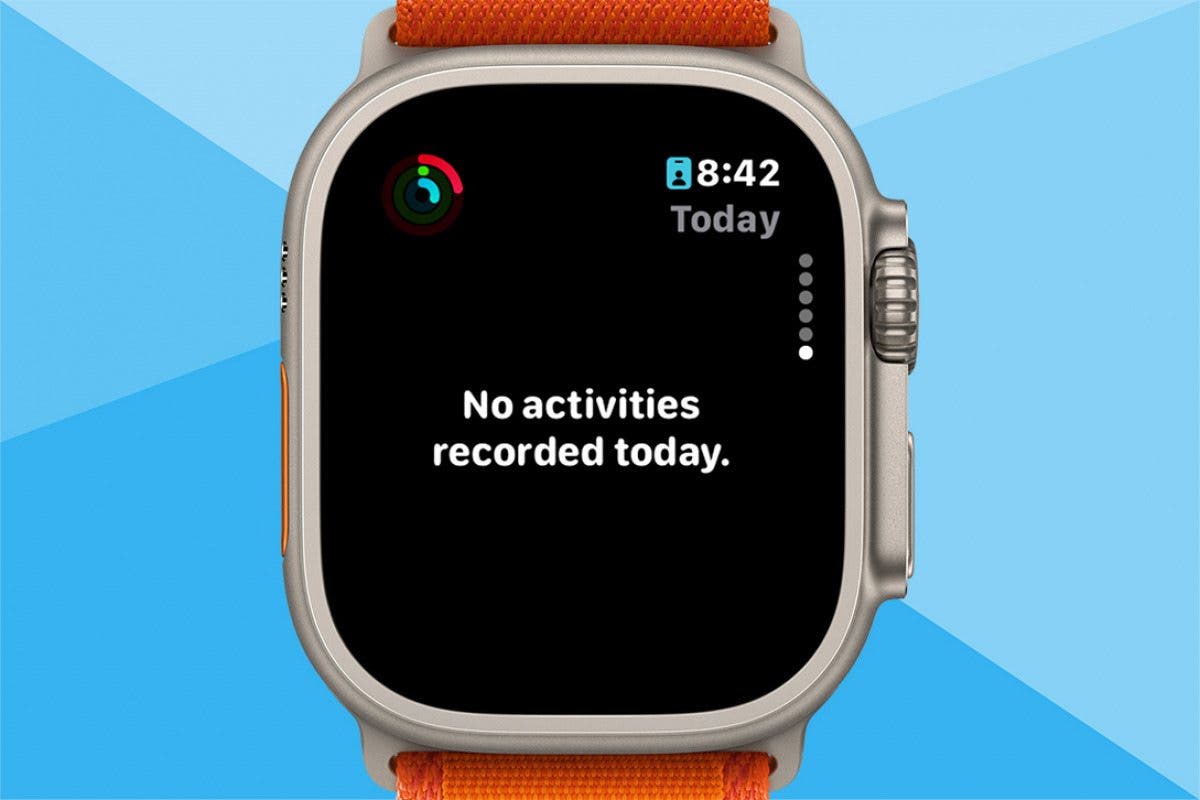
Software glitches can quietly sabotage your fitness app’s ability to track your progress. These issues might cause your steps, workouts, or calories burned to not register correctly, leaving you frustrated and unsure if your efforts count. Tackling these glitches early can save you time and help your app perform as expected.
Restarting The App
Closing and reopening your fitness app can often fix minor software hiccups. This simple action refreshes the app’s connection to your device’s sensors and services. Have you noticed that a quick restart sometimes brings your app back to life after it stops tracking?
Make sure you fully close the app, not just minimize it. On some phones, apps running in the background might still malfunction, so a full restart is essential.
Reinstalling The App
If restarting doesn’t work, uninstalling and reinstalling the app can clear deeper issues. This process removes any corrupted files that might cause tracking errors. Have you ever had an app suddenly work perfectly after a fresh install?
Before reinstalling, back up any important data or sync your progress with the cloud. This step ensures you don’t lose valuable workout history during the process.
Clearing App Cache
Cached data helps apps load faster but can cause problems if it becomes outdated or corrupted. Clearing the cache resets this stored information without deleting your personal data. Does your app feel sluggish or unresponsive? Clearing the cache might be the fix you need.
You can clear the cache through your device’s settings under the app management section. This quick action often boosts app performance and can resolve tracking glitches.
Credit: www.iphonelife.com
Conserving Device Battery Life
Conserving device battery life often affects how fitness apps track your activities. Many fitness apps use GPS, sensors, and continuous background activity. These can drain your battery quickly. To save battery, some phones limit app functions. This can cause tracking to stop or pause unexpectedly.
Understanding battery-saving features can help you manage your fitness app better. Adjusting settings and managing notifications can improve tracking without sacrificing battery life.
Adjusting App Settings
Check your fitness app’s settings for battery-saving options. Some apps offer a low-power mode. This mode reduces GPS usage and sensor updates. Turning off unnecessary features like auto-sync can save battery. Make sure the app has permission to run in the background. Without this, tracking may stop when the screen is off.
Managing Notifications
Notifications can drain battery and slow down apps. Limit the number of alerts your fitness app sends. Choose only important notifications to stay active. Disable sounds and vibrations to save more power. This keeps the app running smoothly and helps tracking stay accurate.
Using Power-saving Modes
Most phones have power-saving modes to extend battery life. These modes restrict background activity and GPS use. Turn off power-saving mode when using your fitness app. This allows full tracking capabilities. Some phones let you create exceptions for certain apps. Add your fitness app to this list to keep it active during workouts.
Reaching Out For Support
Reaching out for support can solve many tracking issues in fitness apps. Sometimes, problems need expert help or advice from others. Don’t hesitate to ask for help. It can save time and reduce frustration.
Contacting App Support
App support teams know the app inside out. They can guide you through settings or fix bugs. Most apps offer email, chat, or phone support. Have your app version and device info ready. Clear descriptions of the problem help them assist faster.
Exploring Online Forums
Online forums are great places to find solutions. Users share similar problems and fixes. Search for your app’s name with “tracking issues.” You may find step-by-step guides or tips. Forums often have active communities ready to help.
Seeking Peer Advice
Friends or workout groups may have faced the same problem. They can suggest simple fixes or workarounds. Peer advice is easy to understand and trust. Share your experience and learn from others’ stories.

Credit: www.reddit.com
Credit: www.iphonelife.com
Frequently Asked Questions
Why Is My Fitness App Not Recording Workouts?
Your fitness app may not track workouts if GPS is off or permissions are denied. Ensure location and activity permissions are enabled. Also, check your internet connection and app updates for smooth tracking.
How To Fix Fitness App Not Syncing Data?
To fix syncing issues, restart your device and update the app. Check if your internet connection is stable. Also, verify if the app is connected to your fitness device or wearable correctly.
Can Battery Saver Mode Affect Fitness App Tracking?
Yes, battery saver mode can limit app background activity. This restricts data collection and GPS usage. Disable battery saver or add the app to exceptions to ensure accurate fitness tracking.
Why Is My Fitness App Not Tracking Steps?
If your app isn’t counting steps, check if motion sensors are enabled. Make sure the app has permission to access sensor data. Also, calibrate your device if necessary for accurate step counting.
Conclusion
Fitness apps may stop tracking for many reasons. Check your phone’s settings first. Ensure the app has permission to access sensors. Keep the app and phone software updated. Restart your phone to fix temporary glitches. Sometimes, low battery or poor GPS signals cause issues.
Try reinstalling the app if problems persist. Tracking your progress is important for motivation. Fixing these common problems helps keep your fitness goals on track. Stay patient and keep trying different solutions. Your health journey deserves accurate data every step.







