
Are you frustrated because your fitness app isn’t counting your steps correctly? You’re not alone.
Many people rely on these apps to track their daily activity, but when the numbers don’t add up, it can feel confusing and discouraging. If you’ve been wondering why your step count seems off, this article will help you understand the common reasons behind this problem.
Keep reading to discover simple fixes that can get your app working accurately again—and help you stay motivated on your fitness journey.

Credit: www.reddit.com
Common Reasons For Step Tracking Issues
Step tracking issues can be frustrating, especially when you rely on your fitness app to monitor your daily activity. Several common factors often cause these problems. Understanding them can help you fix the issue quickly and get accurate data again.
Sensor Malfunction
Your phone’s built-in sensors, like the accelerometer and gyroscope, are responsible for detecting your movements. If these sensors malfunction or become uncalibrated, your steps won’t be counted correctly.
Sometimes, a simple restart can recalibrate the sensors. But if the problem persists, it might indicate hardware damage—especially if your phone has been dropped or exposed to water.
App Permissions
Fitness apps require specific permissions to access your phone’s sensors and track steps. Without these permissions, the app cannot gather data.
Check if you’ve accidentally denied the app access to motion and fitness activity or background location. Granting these permissions usually resolves step tracking issues immediately.
Battery Optimization Settings
Battery saver modes and optimization settings on your phone can limit background activity for apps. This restriction often causes the fitness app to stop tracking your steps when running in the background.
Try disabling battery optimization for your fitness app. This action lets the app function smoothly without interruptions, ensuring your steps are recorded throughout the day.
Outdated App Version
Using an outdated version of your fitness app may cause glitches and tracking errors. Developers regularly release updates to fix bugs and improve performance.
Make sure your app is updated to the latest version. This simple step can solve many tracking problems and enhance your overall experience.
Credit: www.iphonelife.com
Quick Fixes For Sensor Malfunction
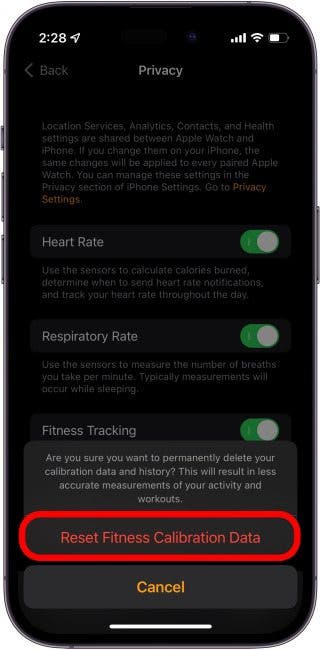
Sensor problems often cause fitness apps to miss counting steps. Small glitches in the device’s sensor can stop it from detecting movement correctly. Fixing sensor issues usually restores accurate step tracking quickly. Try simple fixes before seeking technical support.
Calibrate Your Device
Calibration helps the sensor measure steps accurately. Most devices allow manual calibration through settings or companion apps. Follow these tips:
- Open your fitness app or device settings.
- Find the calibration option for step counting.
- Walk a known number of steps, like 20, as instructed.
- Adjust the sensor sensitivity based on the results.
Regular calibration keeps sensors tuned and improves step accuracy.
Check For Physical Damage
Physical damage can block sensors or cause errors. Look closely at your device for:
- Cracks or scratches on the screen or sensor area.
- Loose parts or buttons affecting sensor function.
- Dirt or debris covering the sensor lens.
Clean the sensor gently with a soft cloth. Avoid water or harsh chemicals. Replace or repair damaged parts to restore tracking performance.
Adjusting App Permissions
Adjusting app permissions is often the key to fixing why your fitness app isn’t tracking your steps properly. These apps need specific access to your phone’s sensors and data to count your movements accurately. Without the right permissions, the app might not work as expected, even if everything else seems fine.
Enable Location Services
Many fitness apps rely on location services to monitor your movement throughout the day. If your app can’t access your location, it may fail to track your steps or distance correctly.
Check your phone’s settings and make sure location services are turned on for your fitness app. On most phones, you can choose between “Always,” “While Using the App,” or “Never.” Selecting “Always” or “While Using the App” usually works best.
Have you ever noticed your step count drops suddenly when you’re somewhere new? That’s often because your location services were off or restricted. Enabling them keeps your tracking consistent no matter where you go.
Grant Activity Access
Fitness apps need permission to access your phone’s activity data, like motion sensors and health information. Without this, the app can’t record your steps or other exercises.
Head to your device’s privacy or health settings and look for “Motion & Fitness” or “Activity Access.” Make sure your app is allowed to read this data.
Sometimes, even if you granted permission before, updates or system changes can revoke it. Double-checking this can save you from hours of wondering why your steps aren’t counting.
Optimizing Battery Settings
Optimizing your phone’s battery settings can help your fitness app track steps better. Some battery-saving features stop apps from running in the background. This can cause missed step counts or delayed updates. Adjusting these settings ensures the app works smoothly without interruptions.
Disable Battery Saver Mode
Battery saver mode limits background activity to save power. This stops your fitness app from tracking steps continuously. Turn off battery saver mode while using the app. This lets the app collect step data without limits. Check your phone settings to find battery saver options. Switch it off during your workouts or daily activities.
Allow Background Activity
Apps need permission to run in the background. Without it, step counting may pause when the app is closed. Allow your fitness app to run in the background. This keeps step tracking active all day. On most phones, you can enable this in app settings. Find the fitness app and allow background activity or unrestricted use.
Updating The Fitness App
Keeping your fitness app up to date is crucial for accurate step tracking. Developers frequently release updates to fix bugs and improve performance. If your app isn’t tracking steps correctly, it might be time to check for an update or reinstall the app entirely.
Check For Available Updates
Your device’s app store is where updates appear first. Open the store and search for your fitness app to see if a newer version is available. Updates often include fixes for issues like step counting errors or syncing problems.
Ignoring updates can cause your app to lag behind in functionality. Even a small update might solve the problem you’re facing. Think about the last time you updated the app—could that be why it’s not working right now?
Reinstall The App
Sometimes, simply updating isn’t enough. Corrupted files or incomplete installations can cause the app to malfunction. Deleting and reinstalling the app can clear these issues and restore proper step tracking.
Before reinstalling, make sure your data is backed up if the app doesn’t sync automatically. After reinstalling, log in again and test the step tracking feature. Does it feel more responsive or accurate now?
Alternative Solutions
If your fitness app isn’t tracking your steps correctly, don’t get discouraged. There are alternative solutions that can help you monitor your activity more reliably. Sometimes, switching tools or devices can make all the difference in your fitness journey.
Try A Different Fitness App
Not all fitness apps are created equal. Some have better algorithms or integrate more smoothly with your phone’s sensors. You might find that switching to a new app improves step tracking accuracy instantly.
Look for apps with high user ratings and regular updates. Apps like Google Fit, Samsung Health, or Pacer often provide reliable tracking and additional features that motivate you. Have you ever tried an app that surprised you with its accuracy?
Use A Dedicated Fitness Tracker
If your phone’s app still falls short, a dedicated fitness tracker might be the answer. Devices like Fitbit, Garmin, or Xiaomi Mi Band use specialized sensors designed to count steps precisely.
These trackers stay with you all day, even during activities where carrying a phone is inconvenient. Plus, they often sync with various apps, giving you flexibility in how you view your data.
Think about your daily routine—would a wristband or clip-on device fit your lifestyle better than a phone app? Sometimes, investing in dedicated hardware is the easiest way to get accurate step counts without hassle.

Credit: www.reddit.com
Frequently Asked Questions
Why Is My Fitness App Not Counting Steps?
Your fitness app may not count steps due to disabled motion tracking or permissions. Check app settings and enable step tracking. Ensure your phone’s sensors are functional and the app has access to motion data.
How To Fix Step Tracking Issues On Fitness Apps?
Restart your device and update the fitness app to the latest version. Clear app cache and ensure permissions for location and motion data are granted. Calibrate your device’s sensors if necessary.
Can Phone Settings Affect Step Tracking Accuracy?
Yes, phone settings like battery saver or restricted background activity can stop step tracking. Disable battery optimization for the fitness app and allow it to run in the background for accurate tracking.
Why Does My Fitness App Show Fewer Steps?
Step count may be low if the app misses some movements or the phone is not carried consistently. Carry your phone on your body and avoid obstructing sensors for better accuracy.
Conclusion
Step tracking apps need correct settings to work well. Check your phone’s sensors and app permissions first. Sometimes, updates or bugs can cause tracking problems. Restart your device and app to fix small glitches. Make sure your app is the latest version.
Walking style or phone placement can affect step counts too. Keep these tips in mind for better tracking. Staying active is important, so don’t let app issues stop you. Simple fixes often solve most step tracking problems fast. Keep moving and track your progress with patience.







