
Are you frustrated because your fitness app isn’t tracking your steps properly? You rely on it to keep you motivated and on track, but when the numbers don’t add up, it can feel confusing and discouraging.
You might wonder if the problem is with your phone, the app, or maybe even your habits. Don’t worry—you’re not alone. You’ll discover the common reasons why your fitness app might miss your steps and simple fixes you can try right now.
Keep reading to get your step count back on track and make every move count!
Common Reasons For Step Tracking Issues
Step tracking issues can be frustrating when your fitness app does not count your movements accurately. Several common reasons cause these problems. Knowing these can help you fix the issue quickly.
Device Compatibility Problems
Some fitness apps may not work well on older or unsupported devices. The app might need specific hardware or sensors that your device lacks. Also, outdated operating systems can cause the app to malfunction. Check if your phone or wearable meets the app’s requirements.
Gps And Location Settings
Many fitness apps use GPS to track your steps and distance. If location services are turned off, step tracking may stop working. Poor GPS signals, especially indoors or in dense areas, can also cause errors. Make sure location permissions are enabled and your device has a clear view of the sky.
Battery Optimization Interference
Battery-saving features can limit app activity in the background. This restriction can stop your fitness app from counting steps accurately. Some phones automatically close apps to save power. Adjust battery optimization settings to allow your fitness app to run continuously.

Credit: www.reddit.com
Ensuring Proper App Permissions
Ensuring your fitness app has the right permissions is crucial for accurate step tracking. Without access to necessary data, the app cannot count your movements properly. Checking and updating permissions can solve many common issues quickly.
Access To Motion And Fitness Data
The app needs permission to read motion and fitness data from your device sensors. This data tracks your steps, distance, and activity type. On smartphones, this access is usually managed in your device settings under privacy or health sections.
Make sure the fitness app is allowed to use motion sensors. Denied access means the app cannot collect your step data at all. Enabling this permission lets the app gather accurate and real-time movement information.
Location Services Authorization
Some fitness apps require location access to track your steps and routes. Even if you only want step counts, the app might use location data to improve accuracy. Check if location services are enabled for your fitness app in the device settings.
Select the correct location permission level, such as “While Using the App.” Full access is usually unnecessary and may raise privacy concerns. Proper location access helps the app count steps more reliably, especially during outdoor activities.
Calibrating Your Device For Accurate Tracking
Calibrating your device is key for accurate step tracking. Devices rely on sensors and software to count steps. If these are not set correctly, the data may be wrong. Proper calibration ensures your fitness app records your movements well. It helps avoid undercounting or overcounting steps during your activities.
Updating Software And Apps
Software updates often fix bugs that affect step tracking. These updates improve sensor performance and app accuracy. Keep your device’s operating system current. Also, update your fitness app regularly. Updates ensure compatibility with the latest hardware and software. This process reduces errors in step counting and tracking.
Resetting Motion Sensors
Motion sensors can lose accuracy over time. Resetting them can restore proper function. This action clears old data and recalibrates the sensors. To reset, check your device settings or user manual. After resetting, your device can better detect movements. Accurate sensor data leads to more reliable step counts.

Credit: www.reddit.com
Troubleshooting Connectivity Issues
Connectivity issues can often be the hidden cause behind your fitness app not tracking your steps accurately. If your app isn’t syncing properly or showing the right data, the problem might lie in how your devices communicate. Let’s look at common connectivity problems and how to fix them so your step count gets back on track.
Bluetooth And Wi-fi Connectivity
Bluetooth is the main way your fitness app communicates with wearables like smartwatches or fitness bands. If Bluetooth is off or unstable, your app won’t receive step data. Check if Bluetooth is enabled on your phone and that your wearable is in range. Sometimes toggling Bluetooth off and on again can refresh the connection.
Wi-Fi also plays a role, especially if your app uploads data to the cloud. Weak or intermittent Wi-Fi can cause syncing delays or failures. Try switching between Wi-Fi and mobile data to see if the step count updates. Have you noticed your app syncing better on a different network? That’s a clue to where the problem lies.
Syncing With Wearable Devices
Even if Bluetooth is working, syncing can fail if the wearable device’s firmware or app is outdated. Check for updates regularly, as manufacturers release fixes for bugs affecting step tracking. A recent update might solve your problem without further action.
Sometimes, unlinking and re-pairing your device can restore syncing. It’s like giving your devices a fresh handshake. But before you do this, back up any important data to avoid losing your history. Have you ever felt frustrated after losing your step records? Taking this precaution can save you that pain.
Also, ensure your wearable is worn correctly and securely. Sensors need close contact with your skin to count steps accurately. Loose or misplaced devices can cause erratic step counts or no data at all.
Optimizing App Settings
Optimizing your fitness app settings can improve step tracking accuracy. Many apps need fine-tuning to match your walking habits and body details. Adjusting settings helps the app count steps better and avoid errors. A few simple changes can make a big difference in tracking your daily activity.
Adjusting Step Length And Sensitivity
Step length affects how the app calculates distance from your steps. Set your step length close to your real stride for better results. Most apps let you enter this manually or use an average value.
Sensitivity controls how the app detects movement. High sensitivity may count false steps, while low sensitivity might miss some. Find a balance that fits your walking style and phone placement.
Customizing Tracking Preferences
Many apps offer settings to customize what counts as a step. You can choose to track steps only during walking or running. Some apps let you disable step tracking during driving or cycling.
Adjust permissions for motion sensors and GPS inside the app. Ensure the app has access to all necessary data for accurate tracking. Turn off battery saver modes that limit background activity for the app.
Exploring Alternative Fitness Apps
If your current fitness app isn’t tracking your steps accurately, it might be time to consider other options. Different apps use various technologies and algorithms, which can affect how well they count your movements. Trying out alternative fitness apps can help you find one that fits your lifestyle and tracks your activity more reliably.
Switching apps doesn’t mean starting over; it means finding a better tool to support your goals. You might discover features that motivate you more or offer insights you didn’t get before. So, what should you look for when choosing a new step tracker?
Top-rated Step Tracking Apps
- Pedometer++– Simple and user-friendly, great for those who want straightforward step counting without distractions.
- Google Fit– Integrates with many devices and offers detailed activity tracking beyond just steps.
- Samsung Health– Offers comprehensive health metrics along with step tracking, perfect if you want a fuller picture.
- Fitbit App– Pairs with Fitbit devices but can also track steps on its own using your phone’s sensors.
- MapMyWalk– Combines step tracking with GPS mapping, useful if you like to track your routes and distances.
Comparing Features And Benefits
| App | Step Tracking Accuracy | Additional Features | Best For |
|---|---|---|---|
| Pedometer++ | High | Simple interface, daily step goals | Minimalists and beginners |
| Google Fit | Moderate to High | Heart rate, activity goals, integration with other apps | Users wanting all-in-one health tracking |
| Samsung Health | High | Sleep tracking, stress management, nutrition logging | Samsung device owners and wellness seekers |
| Fitbit App | Very High (with device) | Sleep analysis, guided workouts, social challenges | Fitbit users and competitive walkers |
| MapMyWalk | High | Route mapping, workout history, training plans | Outdoor walkers and runners |
Have you noticed how some apps keep you more motivated? Sometimes, it’s not just about counting steps but how the app presents your progress. Think about what features matter most to you—do you prefer simplicity or a detailed health snapshot? The right app could change how you view your daily activity and even boost your motivation.
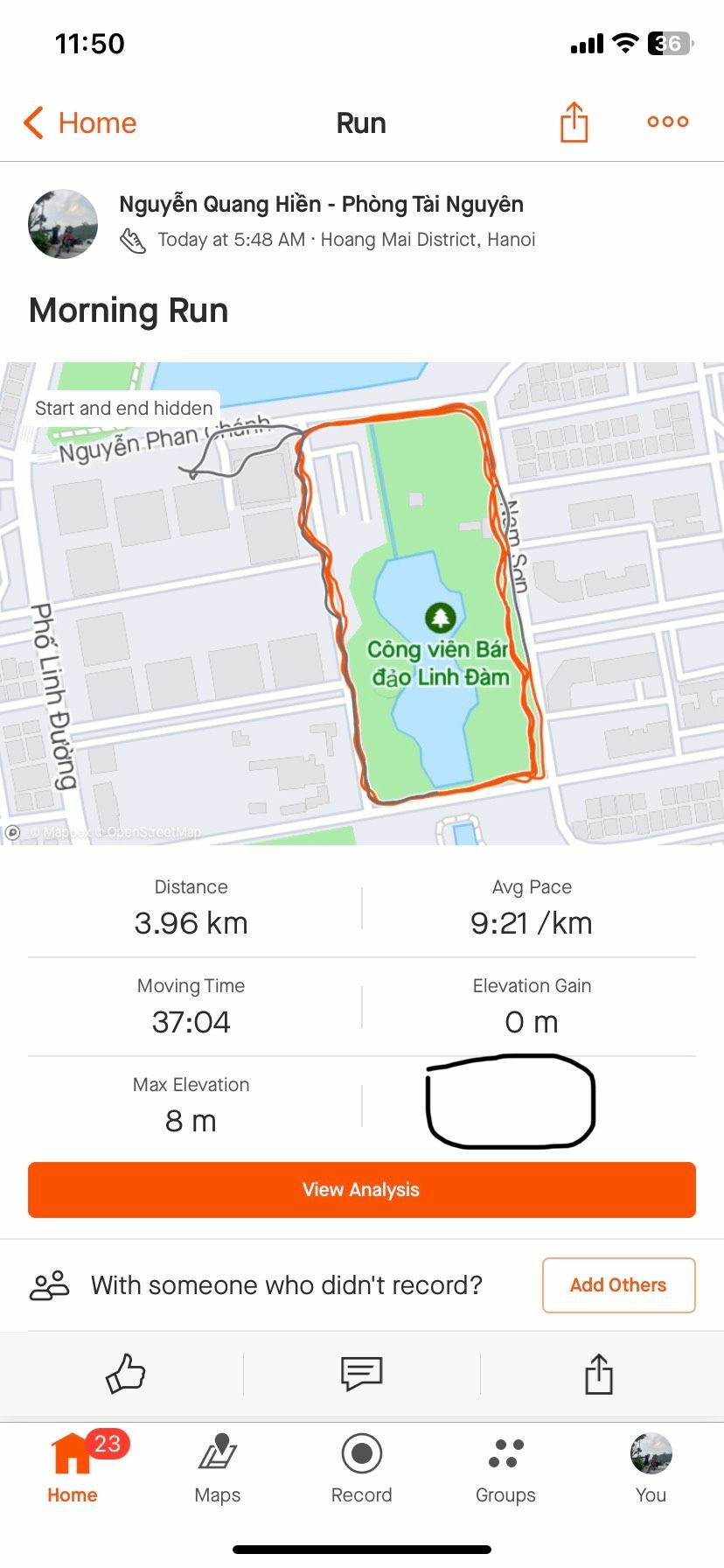
Credit: communityhub.strava.com
Frequently Asked Questions
Why Isn’t My Fitness App Counting My Steps?
Your app may lack permission to access your phone’s motion sensors. Check settings and enable step tracking permissions for accurate counts.
How Do Phone Settings Affect Step Tracking Accuracy?
Incorrect date, time, or location settings can disrupt step tracking. Ensure these settings are correct to improve your app’s performance.
Can Low Battery Mode Stop Step Tracking?
Yes, low battery mode can limit background activity. This may prevent your app from recording steps accurately or continuously.
Why Does My Fitness App Miss Steps Sometimes?
Step tracking relies on motion sensors and algorithms. Sudden movements or device placement can cause missed or inaccurate step counts.
Conclusion
Step tracking issues can happen for many simple reasons. Check your app permissions and phone settings first. Make sure your device’s sensors work properly and keep your app updated. Sometimes, restarting the app or phone helps too. Don’t forget to wear your device correctly for accurate tracking.
Small fixes often solve big problems. Keep these tips in mind and enjoy better step tracking soon. Your fitness journey deserves accurate and easy tracking every day.







