
Are you frustrated because your fitness app is not tracking your workouts properly? You rely on it to measure your progress, keep you motivated, and help you reach your goals.
When it fails, it feels like all your hard work is wasted. But don’t worry—you’re not alone, and there are simple fixes that can get your app back on track. Keep reading to discover why your fitness app might be struggling and how you can solve these issues quickly.
Your fitness journey deserves accurate tracking, and we’re here to help you make that happen.

Credit: www.reddit.com
Common Issues With Fitness Apps
Fitness apps help many track workouts and daily activity. They guide users to stay active and meet goals. Yet, these apps sometimes miss data or track wrong numbers. Knowing common problems helps users fix or avoid errors.
Connectivity Problems
Many fitness apps need internet or Bluetooth to work well. Poor Wi-Fi or weak signals often stop apps from syncing data. Devices may fail to connect, causing loss of activity records. Restarting apps or checking connections can help restore tracking.
Gps Malfunctions
GPS tracks routes and distance during runs or walks. Cloudy weather or tall buildings can block GPS signals. This leads to wrong distance or no route shown. Turning GPS off and on or moving to open spaces improves accuracy.
Inaccurate Step Count
Step counters use phone sensors to count movements. Sometimes, they count hand motions as steps or miss slow walks. Different devices may show different step numbers for the same activity. Keeping the device on your body helps get better counts.
Quick Fixes For Connectivity
Connectivity issues often cause fitness apps to stop tracking activities properly. Fixing these problems usually takes just a few simple steps. These quick fixes help restore the connection and get your app working smoothly again.
Check Internet Connection
A stable internet connection is essential for most fitness apps. Verify your device is connected to Wi-Fi or mobile data. Try browsing a website or streaming a video to confirm the connection works. If the internet is slow or unstable, move closer to the router or switch networks. Turning airplane mode on and off can also refresh connections.
Restart The App
Restarting the app can clear temporary glitches. Close the app completely by swiping it away or using the app manager. Wait a few seconds, then reopen it. This action often resets the app’s connection to servers and sensors. It helps the app track your fitness data correctly again.
Update The App
App updates fix bugs and improve performance. Open your device’s app store and check for updates to your fitness app. Download and install the latest version. Updates may improve connectivity and fix tracking problems. Keeping your app updated ensures it works well with the latest device software.
Addressing Gps Challenges
GPS issues often cause fitness apps to miss tracking your activities. Addressing these problems can improve your app’s accuracy and reliability. Simple fixes can help the GPS work better during your workouts.
Enable Location Services
Location services must be turned on for your fitness app to access GPS data. Check your phone’s settings and allow the app to use location. Without this permission, the app cannot track your route or distance.
Calibrate Gps Settings
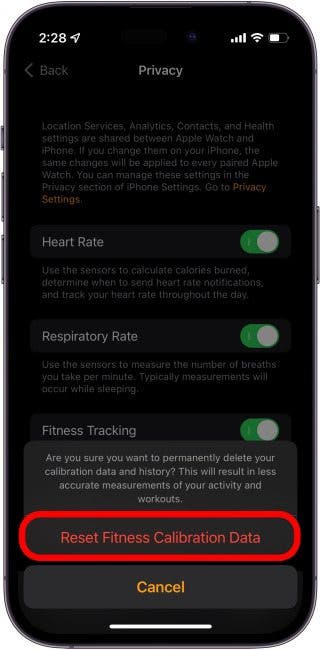
Calibrating GPS improves tracking precision. Some phones need you to adjust settings or update location data. Use apps or built-in tools to reset GPS and clear old signals. This step helps reduce errors in tracking your movement.
Ensure Clear Line Of Sight
GPS signals can be blocked by buildings, trees, or weather. Try to exercise in open areas with a clear sky view. This helps your device connect to satellites faster and keeps your location accurate during workouts.
Improving Step Count Accuracy
Improving step count accuracy helps get better fitness results. Accurate tracking shows true activity levels. Small changes can make a big difference. Follow these tips to improve your step count.
Adjust Sensitivity Settings
Many fitness apps allow sensitivity adjustments. Higher sensitivity catches smaller movements. Lower sensitivity avoids false steps from shaking. Find a balance that fits your activity. Test settings after changes for best results.
Wear The Device Correctly
Proper device placement affects step tracking. Wear your tracker on the wrist or waist as recommended. Avoid loose straps that let the device move too much. Keep the sensor clean for better performance. Consistent wearing position improves data accuracy.
Sync With Wearable Devices
Sync the app with your wearable device regularly. Syncing updates step data and fixes errors. Use Bluetooth or Wi-Fi for stable connection. Check for app and device software updates. Updated software enhances tracking accuracy and reliability.
Enhancing App Performance
Improving the performance of a fitness app ensures accurate tracking and smooth user experience. Sometimes, the app may not track correctly due to minor software issues. Addressing these problems can help the app work better and keep your fitness data reliable.
Clear App Cache
App cache stores temporary files for faster loading. Over time, this cache can become large and cause glitches. Clearing the cache removes old data and frees up space. It often solves tracking problems and improves app speed.
- Go to your device settings.
- Find the app under installed apps.
- Select “Clear Cache” to remove temporary files.
Check Device Compatibility
Some fitness apps need specific hardware or software to work well. If the device is outdated, the app may not track accurately. Checking compatibility helps avoid these issues. Visit the app’s official page to see required device specs.
- Check your phone’s operating system version.
- Look for required sensors like GPS or accelerometer.
- Update your device software if possible.
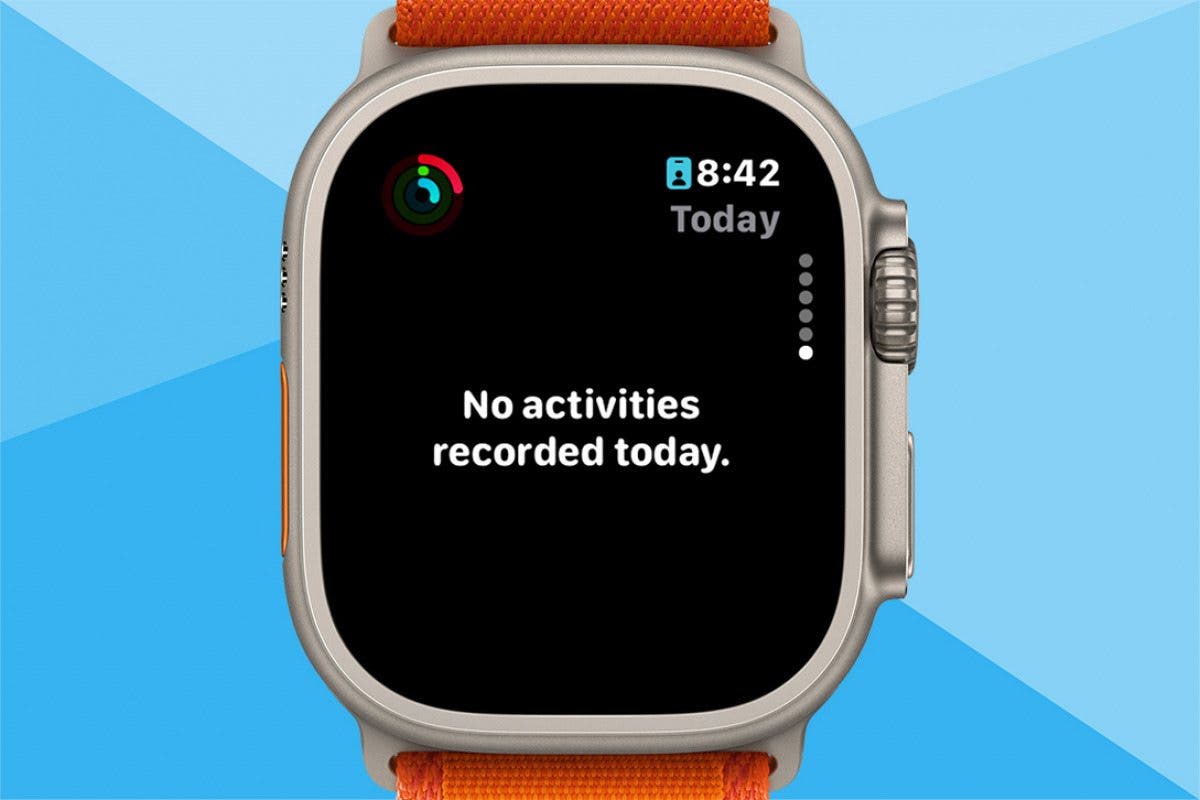
Reinstall The App
Reinstalling the app can fix corrupted files and reset settings. It removes any hidden bugs causing tracking errors. After uninstalling, download the latest version from a trusted store. This step often restores full app functionality.
- Uninstall the fitness app from your device.
- Restart your phone to clear memory.
- Download and install the app again.
Credit: www.iphonelife.com
Utilizing App Support And Community
When your fitness app stops tracking accurately, don’t let frustration take over. The app’s support and user community can offer quick solutions and helpful advice. These resources often have answers tailored to your specific issue, saving you time and effort.
Contact Customer Support
Reaching out to customer support is often the fastest way to solve tracking problems. Support teams have access to detailed app data and can guide you through troubleshooting steps. Keep your app version and device details handy to speed up the process.
Sometimes, a simple update or reset suggested by support fixes the issue immediately. Have you ever contacted support only to find out it was a known bug? Don’t hesitate to ask—they might even provide workarounds.
Join User Forums
User forums are goldmines for real-world experiences and tips. People share solutions for bugs, app settings, and device compatibility that customer support might not cover. You can post your problem and get feedback from users who faced the same issue.
These communities often have ongoing discussions about app updates and hidden features. Have you checked if your problem is a common complaint? Joining a forum could connect you with power users who know tricks beyond the official guides.
Read App Reviews
App reviews on stores like Google Play or the App Store reveal patterns in user experiences. Look for recent reviews mentioning tracking issues to see if others are facing the same problem. Reviews sometimes include practical fixes or warnings about app updates that caused bugs.
Pay attention to developer responses in reviews—they often provide insights or timelines for fixes. Before giving up on your app, ask yourself: Are negative reviews about tracking a trend or isolated cases? This can help you decide if switching apps is necessary.
Credit: www.iphonelife.com
Frequently Asked Questions
Why Is My Fitness App Not Tracking My Activity?
Your fitness app may not track activity due to GPS issues, app permissions, or sensor malfunctions. Ensure location services are enabled, permissions granted, and the app is updated for accurate tracking.
How Can I Fix Fitness App Tracking Errors?
Restart your device, update the app, and check permissions. Clear cache and ensure sensors like GPS and accelerometer function properly to resolve tracking errors effectively.
Does Battery Saver Mode Affect Fitness App Tracking?
Yes, battery saver mode can restrict background activity and GPS use. Disable battery saver to allow your fitness app to track workouts accurately and continuously.
Can App Updates Cause Tracking Problems?
Sometimes, app updates may introduce bugs affecting tracking. Check for patches or reinstall the app to fix any issues caused by recent updates.
Conclusion
Fitness apps can sometimes miss tracking your activities. This can happen due to app glitches, phone settings, or sensor issues. Checking permissions and restarting your device often helps. Keeping your app updated improves accuracy. Don’t forget to calibrate sensors if needed.
Small fixes can make a big difference in tracking. Stay patient and keep trying different solutions. Tracking your fitness should be easy and reliable. With a little effort, your app will work better. Keep moving and stay focused on your goals.







