
Are you frustrated because your fitness app isn’t counting your steps correctly? You’re not alone.
Many people rely on these apps to track their daily activity, but when the step count doesn’t add up, it can feel confusing and discouraging. If you’ve ever wondered why your app misses your steps or shows strange numbers, this article is for you.
Keep reading to discover simple reasons behind this problem and easy fixes to get your step tracking back on track. Your fitness goals depend on it!
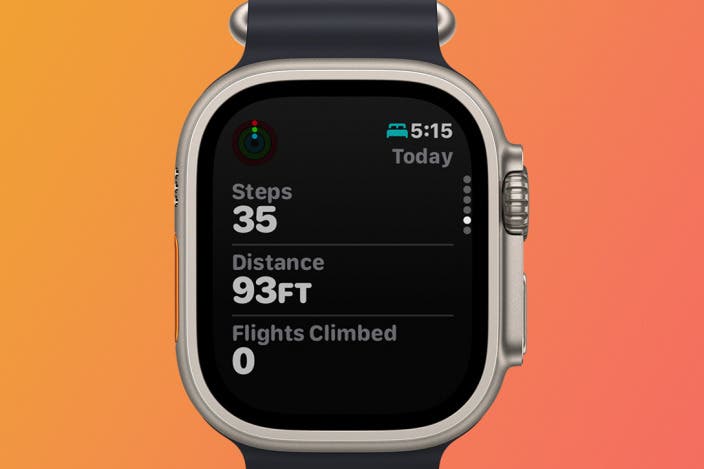
Credit: www.iphonelife.com
Common Reasons For Step Tracking Issues
Step tracking issues can be frustrating, especially when you rely on your fitness app to monitor your daily activity. Understanding common reasons behind these problems helps you troubleshoot effectively. Let’s look at some frequent causes that might be stopping your app from counting steps accurately.
Device Compatibility
Not every fitness app works perfectly with all devices. Some apps require specific hardware features like an accelerometer or gyroscope to count steps. If your phone or wearable lacks these sensors, the app may fail to track your movement.
Even if your device has the necessary sensors, outdated operating systems or firmware can cause conflicts. Have you checked if your app supports your device model and OS version? Updating both your app and device software can often fix compatibility issues.
Sensor Malfunctions
Your device’s sensors play a crucial role in counting steps, but they can sometimes malfunction. Physical damage, exposure to moisture, or simple wear and tear can affect sensor accuracy.
Imagine going for a run and noticing no steps recorded—this might mean the sensor isn’t detecting your motion properly. Try restarting your device or recalibrating the sensors if your app offers that option. If problems persist, professional repair might be necessary.
App Permissions
Your fitness app needs the right permissions to access motion and health data. Without these permissions, it can’t read sensor information or update step counts.
Have you checked your phone’s settings to ensure the app has access to motion and fitness data? Sometimes, permissions reset after updates or device restarts. Granting the necessary permissions can immediately resolve tracking issues.

Credit: www.reddit.com
Quick Troubleshooting Tips
If your fitness app isn’t tracking your steps, don’t panic. Sometimes the fix is simpler than you think. Try these quick troubleshooting tips to get your app back on track and ensure your daily efforts are counted accurately.
Restart Your Device
Have you tried turning it off and on again? Restarting your phone or smartwatch can refresh the system and clear minor glitches that might be blocking step tracking. It’s a quick fix that often resolves hidden software hiccups.
After restarting, open your fitness app and check if it’s recording your steps. You might be surprised how often this simple step works.
Update The App
Outdated apps can cause all sorts of problems, including failing to track your activity. Check your app store to see if there’s an update available for your fitness app.
Updates often include bug fixes and improvements that enhance tracking accuracy. If you’ve been ignoring those update notifications, now’s the time to hit that install button.
Check App Settings
Sometimes the issue lies in the app’s permissions or settings. Make sure your app has permission to access your phone’s motion sensors and location services if required.
Also, double-check that step tracking is enabled within the app itself. You might find that a setting was accidentally turned off or reset after an update.
Have you explored the settings thoroughly? It can make all the difference in getting your app to count every step you take.
Optimizing Device Settings
Optimizing your device settings plays a crucial role in ensuring your fitness app tracks your steps accurately. Sometimes, the app’s inability to count steps isn’t due to software issues but rather how your device’s sensors and permissions are set up. Adjusting these settings can dramatically improve your app’s performance and give you a more reliable step count.
Calibrate Motion Sensors
Your device relies on motion sensors like the accelerometer and gyroscope to count steps. If these sensors are not calibrated properly, your fitness app might miss or double-count your steps. Calibration can often be done within the device’s settings or through specific calibration apps.
Try walking a known distance and compare the step count to your app’s reading. If there’s a big difference, recalibrating the sensors may help. Have you ever noticed your step count suddenly drop during a walk? That might be a sign your motion sensors need attention.
Enable Location Services
Location services often help fitness apps track your movement more precisely. Even though step counting primarily uses motion sensors, GPS data can improve accuracy, especially during outdoor activities. Check if your fitness app has permission to access your location.
Sometimes, location services are disabled to save battery, but this can interfere with step tracking. Enabling location services ensures your app receives all the movement data it needs. Do you keep location services off to protect privacy? Consider turning them on just while you exercise for better results.
Adjust Battery Saver Settings
Battery saver modes can limit background activity and sensor usage, which may stop your fitness app from tracking steps properly. These modes often restrict the app’s access to motion sensors and location data. Review your device’s battery settings to see if the fitness app is restricted.
Allow your fitness app to run without restrictions, especially during workouts. You might notice your step count improving once these limitations are lifted. Have you ever wondered why your step count stops updating mid-day? Battery saver settings could be the culprit.
App-specific Solutions
App-specific issues often cause fitness apps to stop tracking steps. These problems vary by app but share common fixes. Focusing on app-related solutions can restore step tracking quickly. Simple actions within the app itself can solve many problems.
Reinstall The App
Reinstalling the app refreshes its files and settings. This action can fix bugs affecting step tracking. First, uninstall the app from your device. Then, download and install it again from the app store. Reinstalling often clears hidden glitches and restores proper function.
Clear App Cache
Cache holds temporary data that can become corrupted. Clearing the cache removes old files and frees space. Go to your device’s settings and find the app manager. Select your fitness app and tap “Clear Cache.” This step can improve app speed and tracking accuracy.
Check For App-specific Updates
Developers release updates to fix bugs and improve features. Outdated apps may fail to track steps correctly. Open the app store and check if an update is available. Install the latest version to benefit from improvements and bug fixes.
Hardware Considerations
Hardware plays a key role in how well your fitness app tracks steps. The device must have the right sensors working properly. Without them, the app cannot count steps accurately.
Some phones or smartwatches lack built-in sensors for step tracking. Others may have sensors but they might be turned off or malfunctioning. Checking the hardware can help find the cause of step counting issues.
Assess Device Sensors
Your device needs accelerometers and gyroscopes to track movement. These sensors detect motion and changes in direction.
- Check if your phone or watch has these sensors.
- Make sure the sensors are enabled in settings.
- Restart the device to refresh sensor functions.
- Keep your device firmware updated for sensor accuracy.
Consider External Trackers
Some fitness apps work better with external devices. These include fitness bands or smartwatches.
- These devices have dedicated sensors for step counting.
- They sync with your app to provide accurate data.
- Wearing an external tracker can improve step tracking.
- Ensure the tracker is properly paired with your phone.
When To Seek Professional Help
Sometimes, fitness apps fail to track steps despite all efforts. Knowing when to seek help saves time and frustration. Professional support can solve issues beyond basic fixes.
Contacting Customer Support
Customer support teams understand app-specific problems well. They provide tailored solutions and guide through troubleshooting steps. Prepare details like app version, device model, and error messages. Clear information helps support offer fast and accurate help.
Support may suggest updates, settings changes, or reinstalling the app. They can also report bugs to developers. Persistent problems often improve after expert advice.
Visiting A Tech Specialist
Tech specialists handle device-related issues affecting app performance. Problems like faulty sensors or outdated software can block step tracking. Specialists test hardware and system functions to find faults.
They fix or replace broken parts and update device software. This ensures the fitness app works smoothly. Visit a specialist if multiple apps fail to track steps or device behaves oddly.

Credit: www.reddit.com
Frequently Asked Questions
Why Is My Fitness App Not Counting My Steps?
Your app might lack proper permissions or background activity access. Ensure location and motion tracking are enabled for accurate step counting.
How Can I Fix My Fitness App Step Tracker Issues?
Restart your phone, update the app, and check sensor calibration. Clear cache or reinstall the app if problems persist.
Does Phone Placement Affect Step Tracking Accuracy?
Yes, keeping your phone in your pocket or on your arm improves step tracking accuracy compared to bags or loose surfaces.
Can Battery Saver Mode Stop Step Tracking?
Battery saver mode may restrict background activity, causing step tracking to pause. Disable it for continuous step monitoring.
Conclusion
Step tracking issues can be frustrating but are often fixable. Check app permissions and phone settings first. Make sure your phone’s motion sensors are active. Keep your app and phone software updated. Sometimes, restarting the app or phone helps a lot.
Remember, your phone needs to detect movement clearly. Small changes can improve tracking accuracy. Stay patient and try these tips before giving up. Your steps can be tracked correctly with simple fixes. Keep moving and stay motivated.







