
Are you frustrated because your fitness app isn’t counting your steps right? You’re not alone.
When your app fails to track your movement accurately, it can feel like all your effort goes unnoticed. But don’t give up just yet. There are simple reasons why this happens—and easy fixes you can try. Keep reading to discover what might be stopping your app from tracking your steps and how you can get it working perfectly again.
Your fitness goals depend on it!
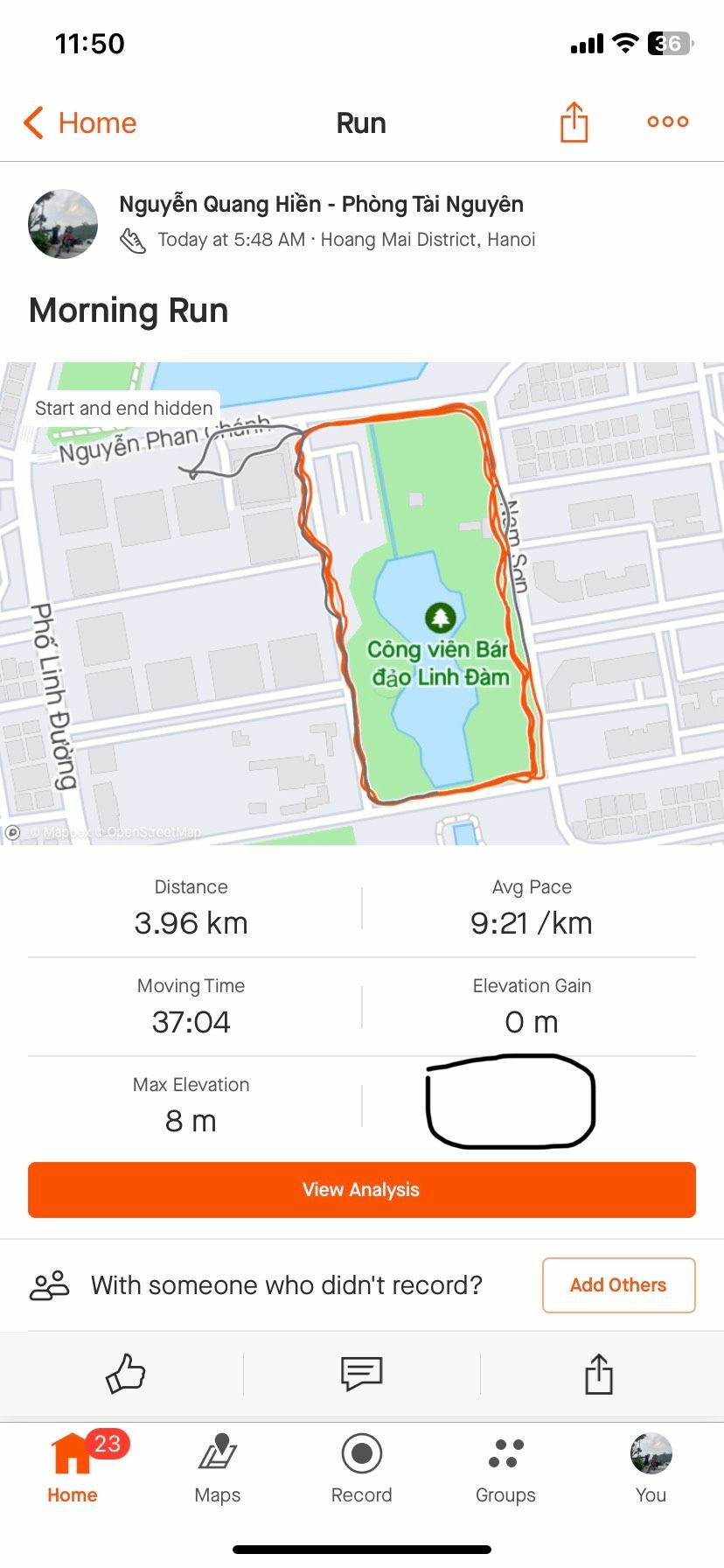
Credit: communityhub.strava.com
Common Reasons Step Tracking Fails
Have you ever gone on a walk, only to find that your fitness app didn’t track your steps? It’s a common issue that leaves many of us scratching our heads. Understanding why step tracking fails can help you get back on track and make every step count.
Sensor Issues
Your smartphone or fitness tracker relies heavily on sensors to count steps. If the sensors are malfunctioning, your steps might not be recorded. Sometimes, simply restarting your device can recalibrate these sensors and solve the problem. Also, check if any debris or damage is affecting the functionality of your fitness tracker.
App Permissions
Did you know that your app needs permission to access your device’s motion and fitness data? Without this, it can’t track your steps. Go into your device’s settings and ensure that you’ve granted the necessary permissions to your fitness app. It’s a quick fix that could instantly resolve your tracking woes.
Battery Optimization Settings
Battery optimization settings are designed to save power, but they can also interfere with step tracking. These settings might restrict background activity for your fitness app. Check if your app is set to save battery and adjust the settings to allow it to run in the background. After all, uninterrupted step tracking is worth a bit more battery usage, right?
Outdated App Or Os
Running an outdated app or operating system can cause compatibility issues. Developers release updates to fix bugs and improve functionality. Make sure both your app and your device’s OS are up-to-date. This simple action can often resolve many tracking issues.
Are you ready to take control of your step tracking? Addressing these common issues can ensure your fitness app counts every step you take. After all, every step brings you closer to your fitness goals. Don’t let technical glitches hold you back from achieving them!
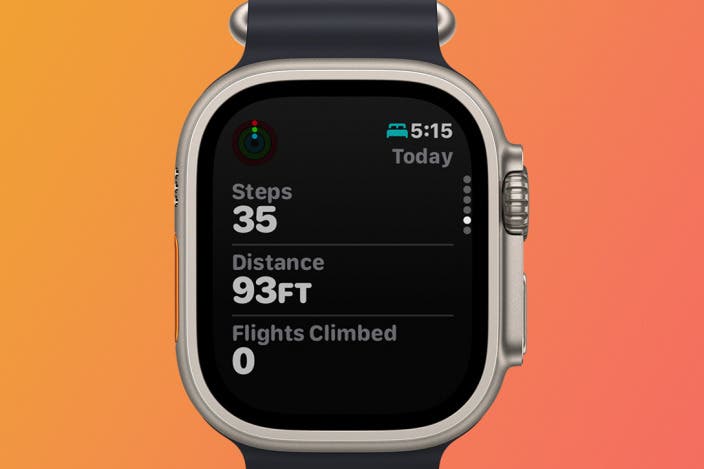
Credit: www.iphonelife.com
Calibrating Your Device
Calibrating your device is a crucial step when your fitness app isn’t tracking steps accurately. It ensures the sensors inside your phone or wearable are aligned with your actual movements. Without proper calibration, even the best apps can show incorrect data, making your fitness goals harder to reach.
Checking Sensor Accuracy
Start by testing if your device’s motion sensors are working correctly. Walk a known distance, like 20 steps, and see if your app records them accurately.
If the count is off, your device might need recalibration. Some phones and wearables let you access sensor settings to adjust sensitivity. Check your device’s settings or the app’s help section for specific instructions.
Sometimes, simply toggling the motion sensor off and on can fix minor glitches. Ask yourself, have you recently dropped or exposed your device to extreme conditions? These can affect sensor performance.
Resetting Motion Data
Resetting motion data clears old sensor information that might be causing tracking errors. This action forces your device to start fresh, improving step count accuracy.
On iPhones, you can reset this by going to Settings > Privacy > Motion & Fitness, then toggling fitness tracking off and on. For Android devices, the process varies but usually involves clearing the app cache or resetting sensor data in developer options.
After resetting, test your steps again. Does the app now match your actual movements better? If not, consider updating your app or device firmware to fix any bugs affecting step tracking.
Adjusting App Settings
Adjusting app settings can fix step tracking problems in your fitness app. Many times, the app needs permission to access your phone’s sensors. These settings help the app count your steps correctly.
Enabling Step Tracking
Step tracking must be turned on inside the app. Go to the settings menu and find the step tracking option. Make sure it is enabled. Sometimes, the app updates can reset this setting. Turning it off and on again can help.
Allowing Background Activity
The app needs to run in the background to count steps all day. Check your phone’s battery or app settings. Allow the app to work when not open. Without this, the app may stop tracking after closing.
Managing Phone Settings
Managing phone settings is key to fixing step tracking issues in fitness apps. Your phone controls many features that affect app performance. Sometimes, the app cannot track steps because of phone settings blocking access.
Adjusting these settings can help the app work correctly. It lets the app access sensors and data needed to count your steps. Let’s explore important settings to check and change for better step tracking.
Disabling Battery Saver
Battery saver mode limits background activity to save power. It can stop your fitness app from tracking steps properly. The app may not run in the background or access sensors fully.
Turn off battery saver to allow full app function. This helps the app track steps all day without interruption. You can disable battery saver in your phone’s quick settings or battery menu.
Granting Location Access
Step tracking apps often use location data to improve accuracy. Without location permission, the app may miss some movement. Location access lets the app combine sensor data with GPS for better results.
Check app permissions in your phone’s settings. Make sure location access is allowed while using the app or always on. This setting helps the app track your steps more reliably and precisely.
Reinstalling And Updating The App
When your fitness app stops tracking steps accurately, reinstalling and updating the app can often fix the problem. These actions refresh the app’s connection with your device’s sensors and clear any glitches that might interfere with step counting. Before you get frustrated or give up on your progress, try these simple yet effective solutions.
Clearing Cache And Data
Clearing the cache removes temporary files that could be causing the app to malfunction. It’s like giving your app a quick reset without deleting your personal data. If the app still miscounts steps, clearing data can help by resetting app settings to default, but be aware this might erase some saved preferences.
Here’s how you can clear cache and data:
- Go to your device’s Settings.
- Find the Apps or Application Manager section.
- Select your fitness app.
- Tap on Storage.
- Choose Clear Cache first, then Clear Data if issues persist.
Have you noticed your app running smoother after clearing cache? Sometimes, these simple actions solve problems faster than you expect.
Installing Latest Updates
App developers frequently release updates to fix bugs and improve functionality. Running an outdated version can cause your steps not to be tracked properly. Updating the app ensures you benefit from the latest fixes and features designed to keep your fitness tracking accurate.
To update your app:
- Open the App Store or Google Play Store.
- Search for your fitness app.
- If an update is available, tap Update.
- Restart your device after updating to refresh system processes.
Think about the last time you ignored an app update—did your app start acting up afterward? Staying current with updates can prevent many common tracking issues.

Credit: www.reddit.com
Alternative Tracking Methods
Sometimes fitness apps fail to track your steps correctly. This can be frustrating after putting in effort. Alternative tracking methods offer reliable ways to monitor your activity. These options can work alongside or instead of your fitness app.
Using Built-in Health Apps
Most smartphones have built-in health apps that track steps. These apps use your phone’s sensors to count movement. They work quietly in the background without extra setup. You can check your daily step count anytime within these apps. Syncing your fitness app with the phone’s health app often improves accuracy.
Examples include Apple Health on iPhones and Google Fit on Android devices. These apps also track other health data such as heart rate and sleep. Using built-in apps reduces the chance of missing step data. They offer a simple way to keep your activity records updated.
Connecting Wearable Devices
Wearable devices like fitness bands and smartwatches provide precise step tracking. They have dedicated sensors designed for activity monitoring. These devices can connect to your phone and sync data with fitness apps. Using wearables helps avoid errors caused by phone movement limitations.
Popular devices include Fitbit, Garmin, and Apple Watch. They offer real-time step counts and detailed activity reports. Wearables also motivate users with reminders and goal tracking. Connecting a wearable device ensures your steps are tracked consistently.
When To Contact Support
Knowing when to reach out for support can save you time and frustration. If your fitness app is not tracking steps correctly despite your efforts, contacting support might be the best next step. Recognizing the right moment to ask for help ensures you get accurate guidance and possibly fixes bugs that affect your user experience.
Reporting Persistent Bugs
If your step count remains off after restarting the app or checking your phone settings, it’s time to report a bug. Persistent bugs can hinder your progress and cause inaccurate data. When reporting, be clear and detailed about the issue, including what you expected and what happened.
Include information like your phone model, app version, and any error messages. This helps the support team pinpoint the problem quickly. Have you ever ignored a bug only to find out later it was affecting many users?
Requesting Technical Assistance
Sometimes the problem goes beyond a simple bug and needs technical help. If you’ve tried all troubleshooting steps—like updating the app, checking permissions, or reinstalling—contact support for expert advice. They can guide you through advanced fixes or escalate the issue if necessary.
When you ask for assistance, describe all the troubleshooting steps you’ve taken. This shows you’ve made an effort and speeds up the support process. Don’t wait too long; unresolved tracking issues can affect your fitness goals and motivation.
Frequently Asked Questions
Why Is My Fitness App Not Counting Steps?
Your app may lack permission to access motion data. Check device settings and enable step tracking permissions for accurate counts.
How Do I Fix Step Tracking Issues On My App?
Restart your device and update the app. Clear app cache and ensure sensor access is enabled for smooth tracking.
Can Phone Settings Affect Step Tracking Accuracy?
Yes, disabling motion sensors or low battery modes can stop step counting. Keep sensors active and battery optimization off.
Does Carrying My Phone Affect Step Tracking?
Yes, step tracking works best when the phone is on your body. Carrying it in hand or bag may reduce accuracy.
Conclusion
Step tracking issues can be frustrating but are often fixable. Check app permissions and phone settings first. Make sure your device sensors work properly. Restart your phone and update the app regularly. Sometimes, a simple reset solves many problems. Keep your app and phone software up to date.
If problems continue, contact app support for help. Staying active matters most, with or without perfect step counts. Keep moving and stay motivated every day.







